Managing organizations (Organization)
The original draft assumed users could create/edit/delete an Organization directly on the Portal. When checked against the live Portal (test account, 2026-07-21), this feature was not found — the account can only choose among pre-provisioned organizations (e.g. GoldenGate, ekyc, Hieu Test, ekyc test — some names overlap with other FPT AI products like eKYC, suggesting this is a shared platform-wide organization list). It's possible organization create/edit/delete exists for a higher-privileged role (e.g. an internal FPT super-admin) that the test account doesn't have. The content below describes what was actually observed: choosing the organization to work in, and managing members/permissions within it. This needs product-team confirmation before being treated as the authoritative replacement for the original organization CRUD section.
An Organization is the top-level management unit in Camera AI — each Organization contains its own set of Locations, Cameras, and Task AI. On the current Portal, an account may have access to multiple Organizations and must choose which one to work in; member and permission management happens within the scope of the chosen organization.
Prerequisites
- You're signed in to the Camera AI Portal.
- Your account already has access to at least one Organization (initial access isn't self-service from the Portal — see the note above).
Choosing the organization to work in
- Click the current organization name in the top bar (top right, next to the "ORGANIZATION" icon).
- The Organization Management window lists the organizations your account has access to, searchable by name.
- Click the organization you want to switch to.
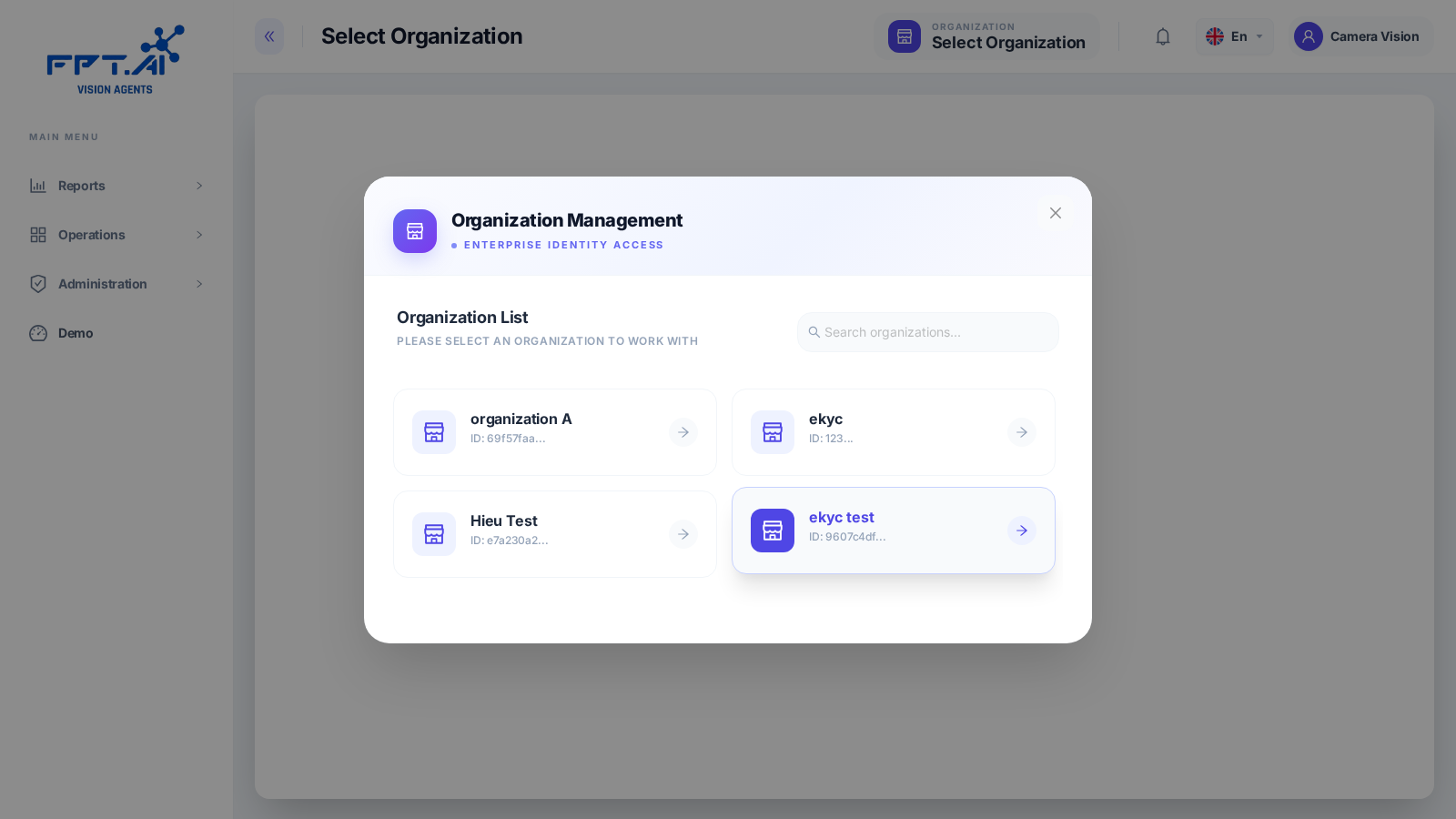
If you haven't chosen an organization yet, the Portal shows a blocking "Please select Organization" screen and requires a choice before you can use any other feature — see Camera AI Portal overview.
All data shown afterward (locations, cameras, tasks, reports) is scoped to the currently selected organization.
Managing members and permissions
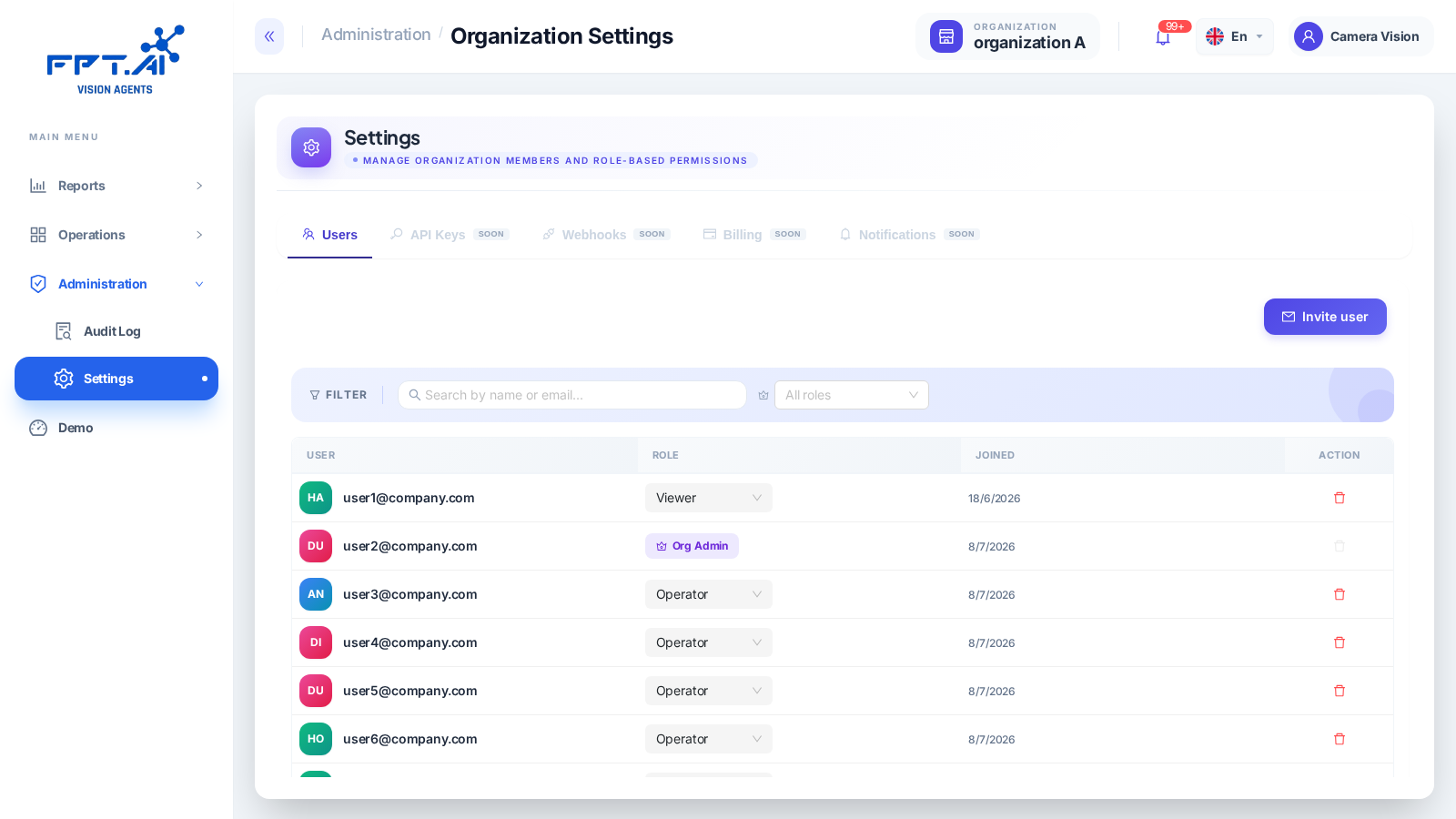
Go to Administration → Settings (breadcrumb shows "Administration / Organization Settings") → the Users tab.
The page lists the current organization's members: email, role, and join date.
Roles
| Role | Note |
|---|---|
| Org Admin | Organization admin privileges — visible in the member list but not among the roles you can assign when inviting a new member (see below); it may be granted through a different mechanism. |
| Operator | A role you can assign when inviting a member |
| Viewer | A role you can assign when inviting a member (default when inviting) |
Inviting a new member
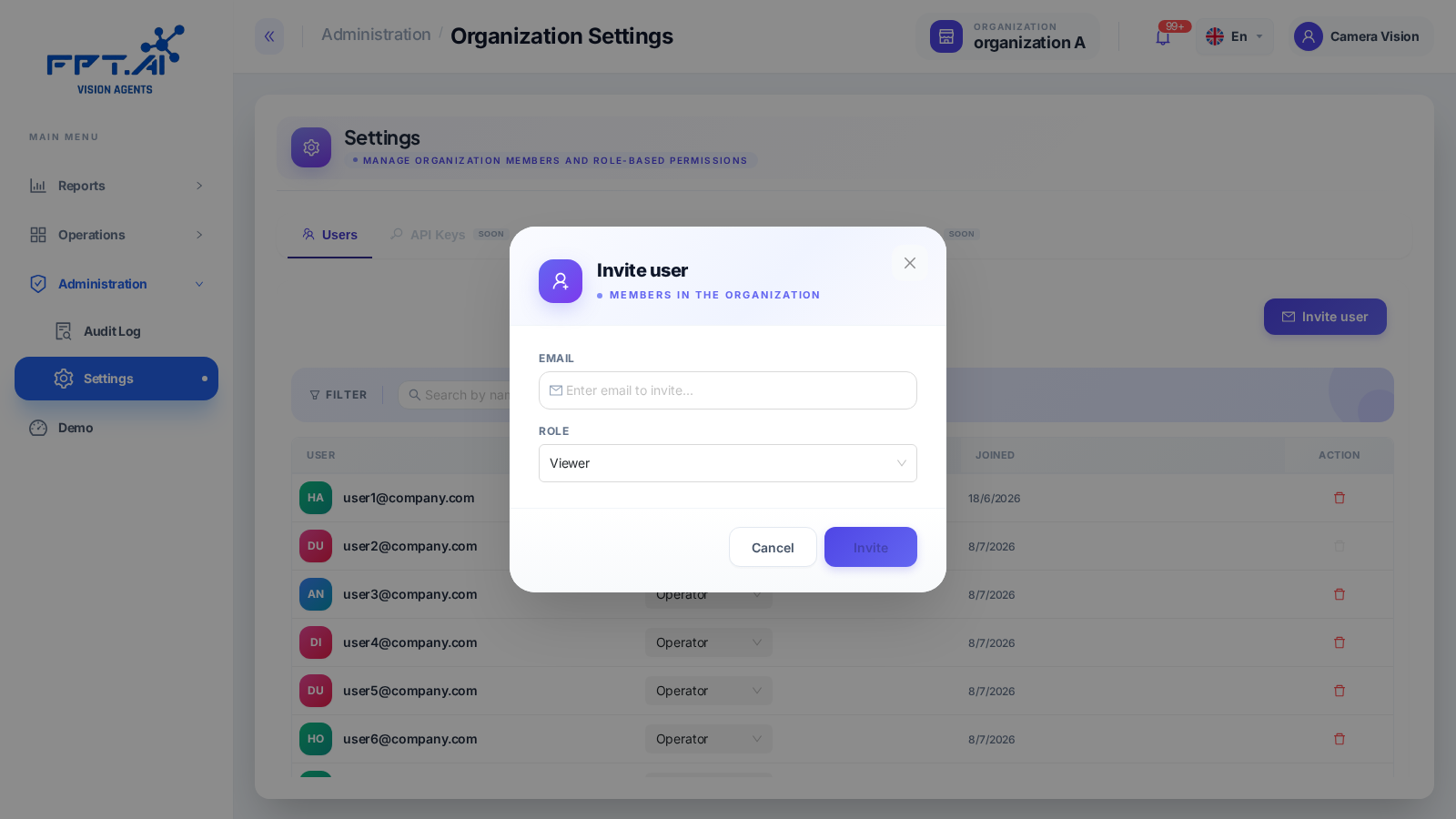
- Click Invite user.
- Enter the Email of the person to invite.
- Choose a Role: Viewer or Operator.
- Click Invite.
Changing a role / removing a member
- Change a role: pick a new value in the Role field for that member in the list.
- Remove: click the trash icon on the member's row to remove them from the organization.
Besides Users, the Settings page has API Keys, Webhooks, Billing, and Notifications tabs — all showing a "SOON" label (not yet available) as of testing (2026-07-21).
Relationship to other components
Organization
├── Location 1
│   ├── Camera 1
│   │   ├── Task AI A
│   │   └── Task AI B
│   └── Camera 2
│       └── Task AI A
├── Location 2
│   └── Camera 3
│       └── Task AI C
└── ...
Each Organization contains multiple Locations. When you create a new Location, it belongs to whichever organization is currently selected in the top bar.