Camera AI Portal overview
The Camera AI Portal is the web admin interface for Vision Agents. It lets you manage your entire camera monitoring workflow, configure AI tasks, view alerts, and generate analytics reports.
Key features
| Feature | Description |
|---|---|
| Member management | Invite members, assign roles (Viewer/Operator/Org Admin) — see Managing organizations |
| Location management | Manage locations within your organization — see Managing locations |
| Camera management | View the camera list, status, and ROI configuration — see Managing cameras |
| Task AI configuration | Assign and manage AI tasks for cameras — see Configuring Task AI |
| Notifications | View system notifications via the bell icon — see Working with alerts |
| Reports | Generate traffic, presence, and meeting check reports — see Generating and exporting reports |
Browser requirements
The Portal supports modern browsers with JavaScript enabled:
| Browser | Minimum version |
|---|---|
| Google Chrome | 90+ |
| Mozilla Firefox | 88+ |
| Microsoft Edge | 90+ |
| Safari | 14+ |
For the best experience, use the latest version of one of the browsers above.
Signing in
The Portal uses Keycloak for authentication.
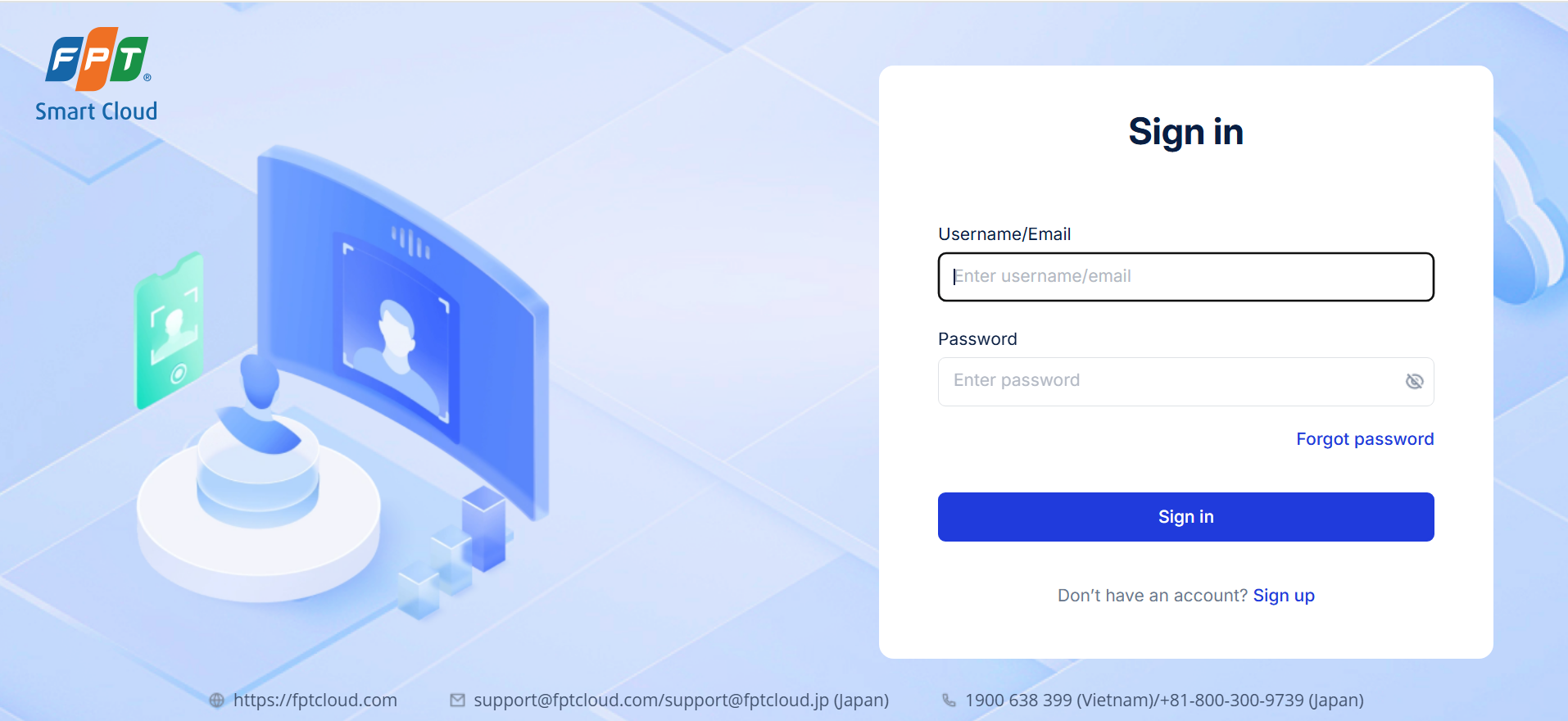
- Go to the Camera AI Portal URL.
- The system redirects you to the Keycloak sign-in page.
- Enter your username and password.
- On successful authentication, the system redirects you back to the Portal with a JWT token.
- If your account has access to multiple organizations, the system shows a Select Organization screen before letting you into the Portal — open the organization list and choose the one you want to work with to continue.
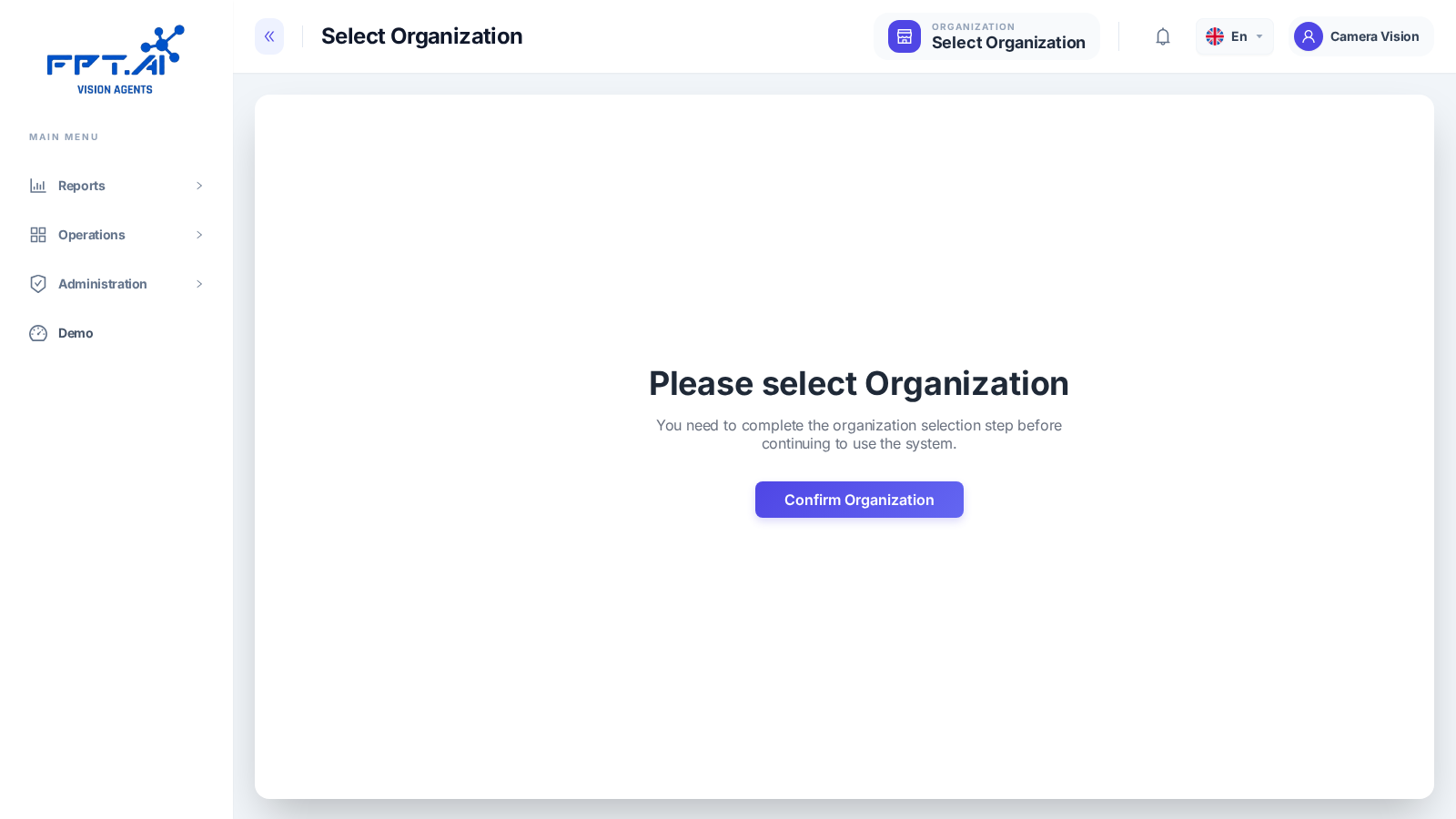
The JWT token has a limited lifetime. When it expires, the system asks you to sign in again.
Navigation structure
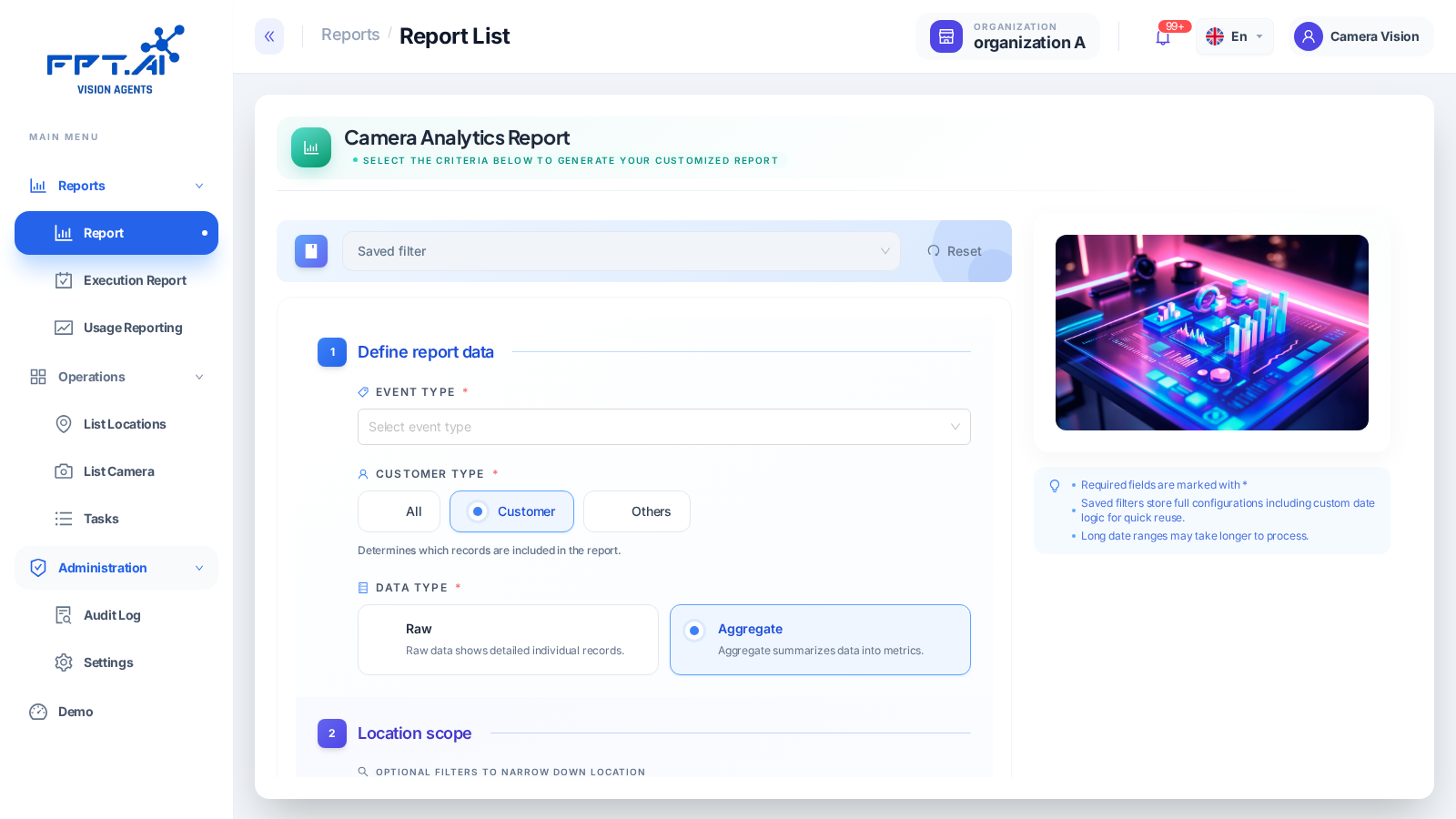
The Portal organizes its functions into groups on the left navigation bar:
- Reports — Report (generate analytics reports), Execution Report, Usage Reporting
- Operations — List Locations (manage locations), List Camera (view/monitor cameras), Tasks (configure AI tasks)
- Administration — Audit Log, Settings (manage organization members and permissions — see Managing organizations)
- Demo — a separate section, out of scope for this documentation
Your current organization is shown in the top bar (top right) — click it to switch to a different organization. System notifications appear via the bell icon next to it — see Working with alerts.
The navigation structure above reflects the real Portal as observed during testing (2026-07-21). There is no flat "Locations / Camera / Task AI / Alerts / Reports" menu as in the original draft — items are grouped as shown above.
The Portal supports Vietnamese and English, switchable via the language button in the top bar.
Next steps
- Getting started with Vision Agents — set up your first organization, location, and Task AI.
- Managing organizations