Configuring Task AI
Task AI is the core analysis configuration unit in Camera AI. Each Task defines the type of analysis to run, its operating schedule, data source, and ROI zone. A task is assigned to one or more cameras; the same configuration can be shared across multiple cameras.
Prerequisites
- The camera has been synced into a Location — see Managing cameras.
Detection Event types (Event Detection)
The list below is taken directly from the Detection Event dropdown when creating a task, replacing the original inferred list.
| Detection Event (Portal name) | Description | Related doc |
|---|---|---|
| Đếm người (People Counting) | Counts people in/out through a door, using face recognition | People counting in/out |
| People Tracking | Tracks a person's position/movement within the frame | (no dedicated doc yet) |
| Restricted Area Alert | Detects a person entering a restricted zone | Restricted zone check |
| Đếm người body (People Counting – body detection variant) | A people-counting variant based on body detection rather than face recognition | (no dedicated doc yet) |
| Check họp đầu ca (Shift Meeting Check) | Checks whether a shift-opening meeting was held | Generating and exporting reports |
"People Tracking" and "Đếm người body" are real task types on the Portal but don't have a dedicated guide yet — consider adding one if customers need this feature.
Creating a new task
- Go to Operations → Tasks → click Create New.
- The task creation window has 2 tabs:
General Information tab
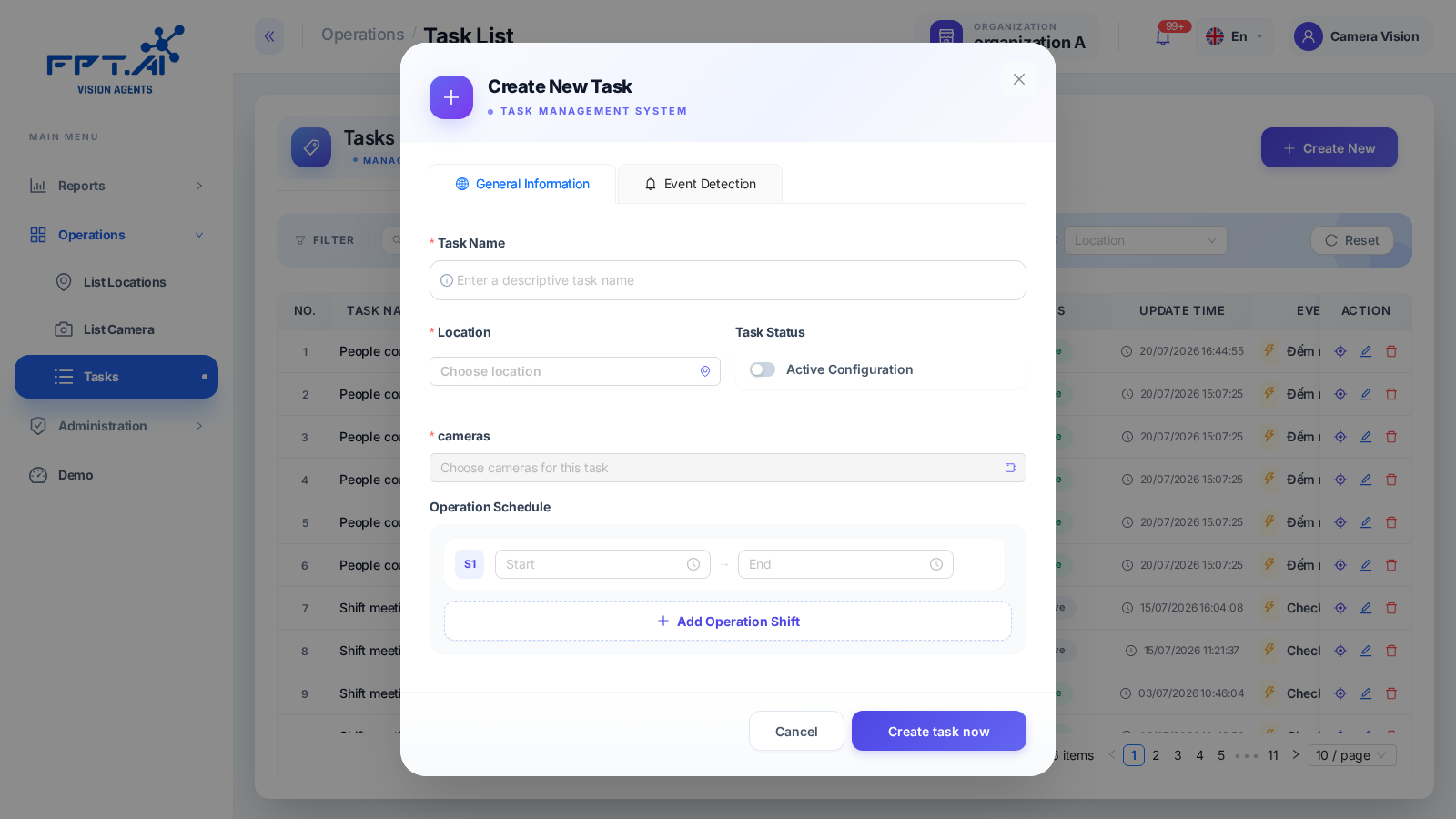
| Field | Description |
|---|---|
| Task Name | The task's name (required) |
| Location | The target location (required) |
| cameras | The list of cameras to apply this to (required) |
| Task Status | Toggle Active Configuration on/off |
| Operation Schedule | One or more shifts (Start/End) — click Add Operation Shift to add a shift |
Event Detection tab
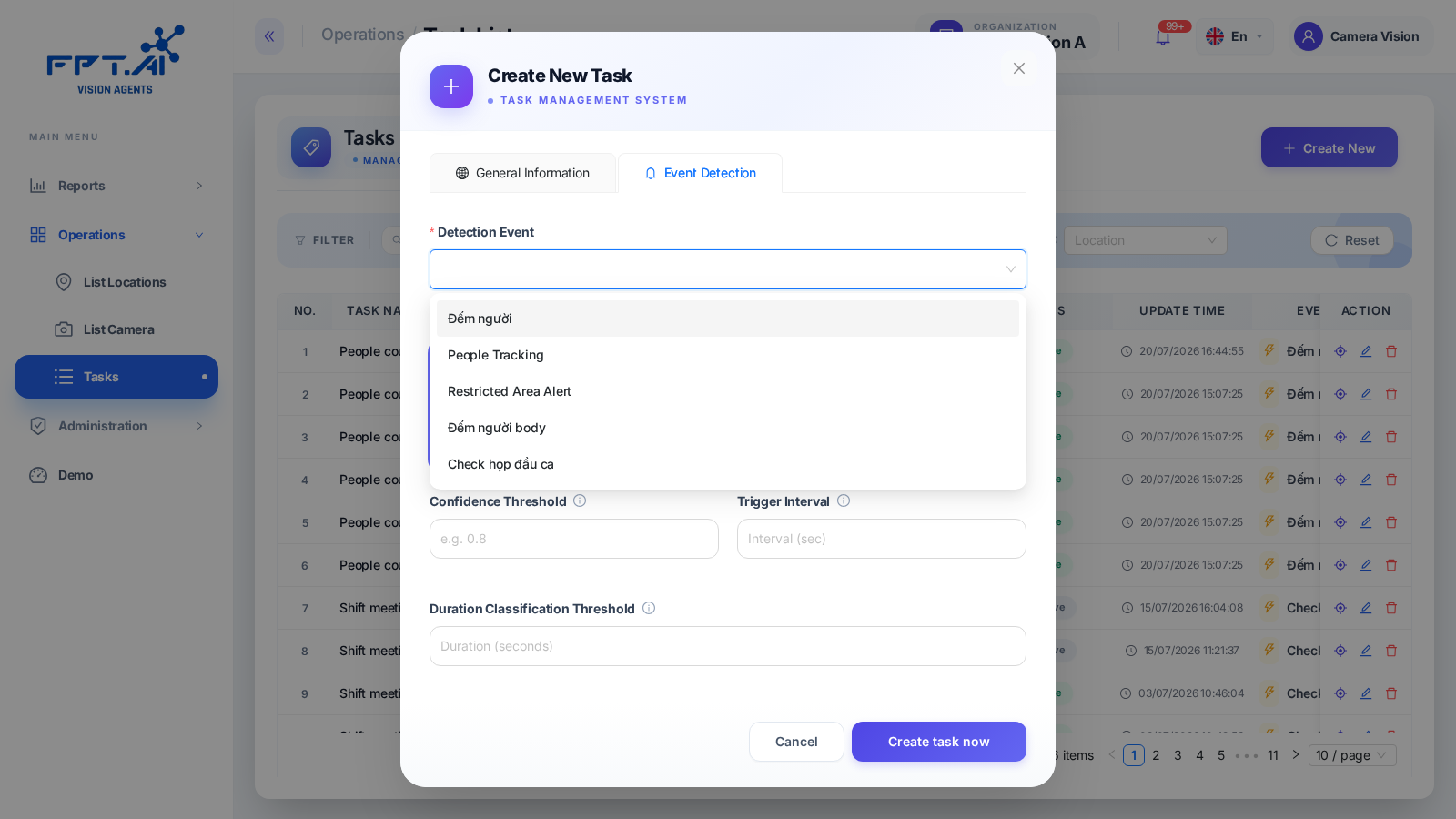
| Field | Description |
|---|---|
| Detection Event | Choose the analysis type — see the table above |
| Video Source | Live stream or Playback (recorded video) |
| Confidence Threshold | The detection confidence threshold (e.g. 0.8) |
| Trigger Interval | The interval between activations (seconds) |
| Duration Classification Threshold | The duration threshold used to classify events (seconds) |
- Click Create task now to save.
Daily schedule
Each time window corresponds to a shift, defined by a start and end time (HH:MM:SS) — e.g. shift 1 from 07:00 to 15:00, shift 2 from 15:00 to 22:00. Each window is automatically labeled "Shift 1", "Shift 2", and so on in order; this label appears in reports.
When the start time is later than the end time (e.g. 22:00 → 06:00), the system treats it as a shift spanning midnight.
The data source (Video Source) also affects how screenshots are captured: live stream captures from the video currently playing, recorded video takes a frame from stored footage.
Confirm: after creating it, the new task appears in the Tasks list (Operations → Tasks) with the correct camera, schedule, and Detection Event you configured.
Managing tasks
The real Tasks list observed (Operations → Tasks) shows individual tasks by name (e.g. "People counting - Ashima Giang Văn Minh Ba Đình HN"), along with location, camera, status, last update time, Event type, video source, and Playback/edit/delete buttons — there is no separate "Task Configuration" concept grouped by label as previously described. The "grouped label" model may apply in a different view that wasn't checked; verify further before treating the section below as accurate.
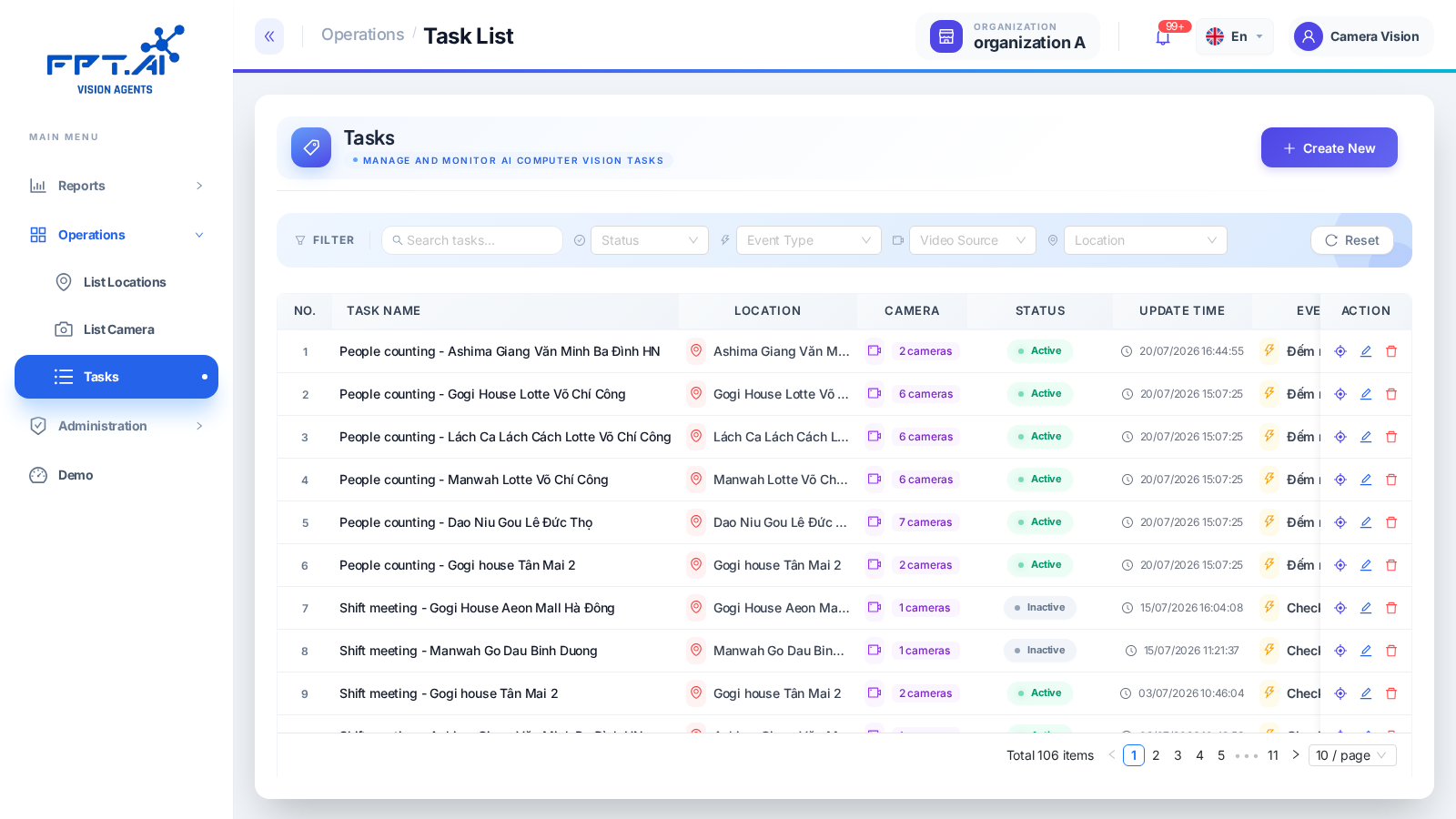
The Tasks page supports filtering by keyword, status, Event type, video source, and location.
Updating: choose a task → click the edit icon → change parameters → Save.
Confirmed directly (2026-07-21): in the Edit Task Configuration screen, the Detection Event field is locked (disabled) — only other parameters (schedule, camera, thresholds, etc.) can be edited. To change the analysis type, you must create a new task instead of editing the existing one.
Deleting: click the delete icon on the task's row (a Yes/No confirmation dialog appears).
Data Summary
For tasks using a recorded-video source, the Data Summary page shows, per task label/day/shift: total cameras configured, cameras currently running, expected vs. actual recorded minutes, and the proportion of data analyzed.
Use Data Summary to quickly spot cameras with missing recordings or that aren't running on schedule.